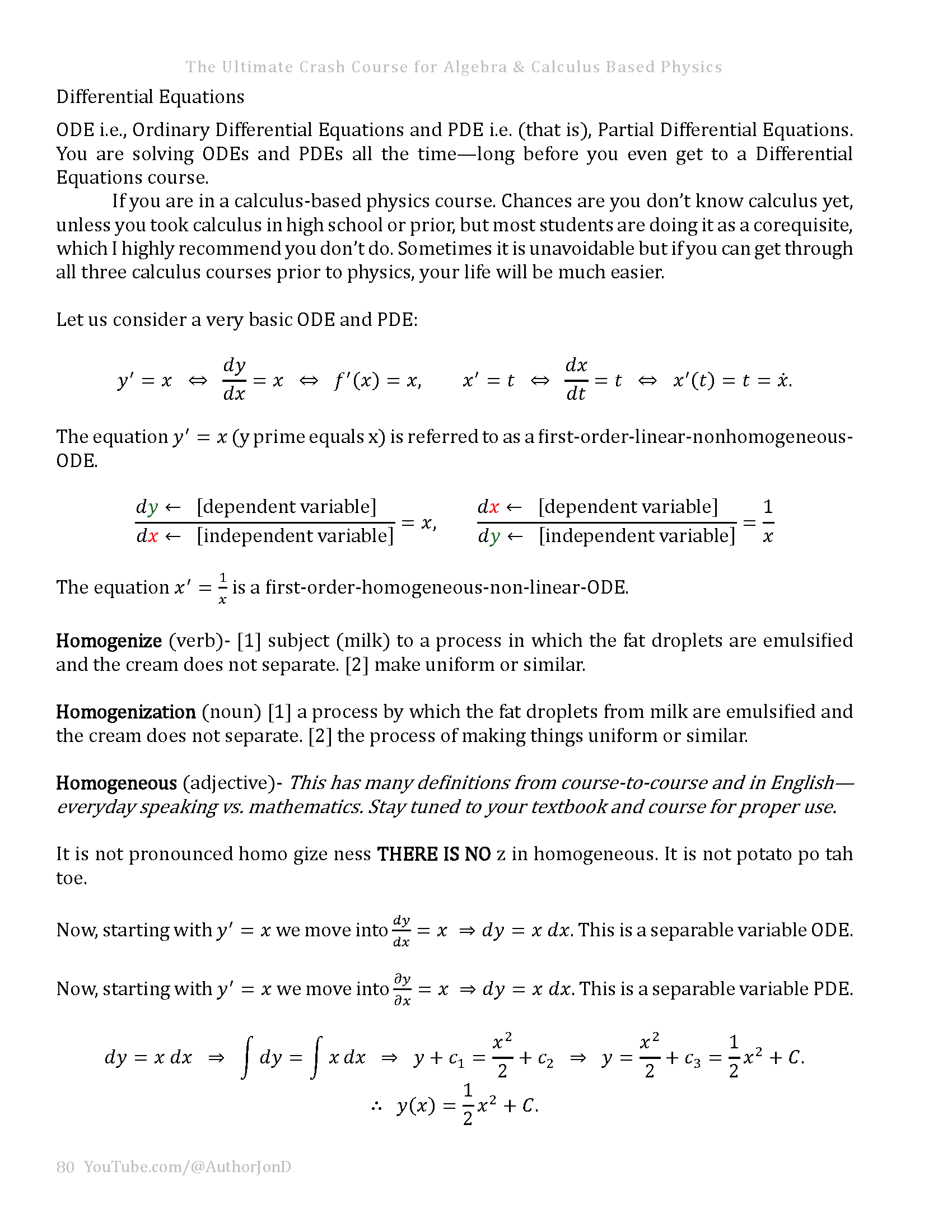
Explore The Ultimate Crash Course for STEM Majors
This lesson is nothing more than a free preview and sample of the study strategies, mathematics lessons, and practical college advice available through The Ultimate Crash Course for STEM Majors. Discover additional educational resources and fiction books at authorjond.com .
How to Take Digital Chemistry and Calculus Notes in Microsoft Word – Equations, Graphs, Diagrams, and Study Organization
Learn how to organize mathematics, calculus, and chemistry notes in Microsoft Word using equations, custom keyboard shortcuts, headings, tables of contents, digital diagrams, graphing software, voice dictation, and editing tools.
Answering a Student’s Question About Microsoft Word Notes
All right, kids. I am going to answer Muhammad’s question about how to make notes in Microsoft Word for chemistry or calculus.
I have a default document that I am going to use quickly to show you a few things.
I have another video explaining how to make this a default document so everything in the document is lined up mathematically. I changed the styles and other formatting options.
Watch the other video to learn how to format a Word document for your notes.
How to Create a Keyboard Shortcut for Equations in Microsoft Word
For chemistry and mathematics, go to Tools and select Customize Keyboard.
Then go to Insert and search for the equation command, such as Equation Insert.
I chose Command + E as my keyboard shortcut. You can choose whatever shortcut you want as your default.
When I press Command + E, I can immediately start typing equations.
Steps for Setting Up an Equation Shortcut
- Open Microsoft Word.
- Go to the Tools menu.
- Select Customize Keyboard.
- Locate the Insert commands.
- Find the equation insertion command.
- Assign a shortcut, such as Command + E.
- Use your shortcut whenever you need to insert a mathematical equation.
Typing equations with this software is straightforward. You just need to understand a few things about LaTeX-style mathematical notation.
How to Type Fractions and Integrals in Microsoft Word
In LaTeX, a fraction can be written using notation that produces an expression like:
In Microsoft Word’s equation editor, you can often enter a fraction more directly by typing $a/b$ and allowing the equation editor to format it.
The same general idea applies to integrals.
For example, a definite integral with lower limit $a$, upper limit $b$, function $f(x)$, and differential $dx$ can be written as:
You enter the integral notation, the lower and upper bounds, the function, and the differential. Microsoft Word automatically converts the mathematical input into a properly formatted equation.
If you are taking mathematical notes, that is how you can enter your equations quickly and neatly.
Organizing Calculus and Algebra Notes With Headings
I will show you how to structure your notes more clearly and neatly as I work through my crash course.
I am going to create many mathematics videos over the next several months. My fiction book-signing season is almost over, so I will be focusing on these mathematics lessons.
The mathematics itself is simple to organize once you establish a consistent structure.
For example, you might organize your notes by chapter and section:
- Chapter 1.
- Section 1.
- Algebra.
- Additional examples and supporting material.
You can insert page breaks between major sections and apply Microsoft Word’s built-in heading styles.
Using Heading 1, Heading 2, and Heading 3
Go to your formatting styles and use:
- Heading 1 for major chapters.
- Heading 2 for individual sections.
- Heading 3 for smaller topics, examples, and subsections.
These headings are important because they make your notes easier to navigate and allow Word to create an organized table of contents.
How to Add a Table of Contents to Your Study Notes
After adding your headings and inserting another page break where necessary, go to References and add a table of contents.
Years from now, you might want to return to your notes and remember where you covered a specific subject, such as Section 1 of algebra.
With a table of contents, you can locate the section and go directly to it.
You can save all your notes this way, creating a searchable, organized personal reference library for mathematics, chemistry, calculus, and other college subjects.
Benefits of Organizing Notes With a Table of Contents
- Find previous lessons without searching through hundreds of pages.
- Keep chapters and sections organized.
- Navigate directly to important topics.
- Maintain your notes as a long-term academic reference.
- Update and expand your study materials over time.
That is how I would organize notes for mathematics and related subjects.
How to Create Chemistry Diagrams for Digital Notes
For chemistry, there are probably dedicated chemistry-drawing programs available.
However, you can also use programs such as Sketchbook Pro, Canva, or a combination of different platforms.
Drawing Chemistry Structures in Sketchbook
Sketchbook is useful because you can draw lines and create your own chemistry diagrams.
If you are working with chemistry and need to draw structures or other visual elements, you can create them directly in Sketchbook.
Sketchbook is free software, and it gives you a straightforward way to build diagrams that you can place into your notes.
Creating Chemistry Diagrams in Canva
You can also use Canva.
In Canva, you may be able to find existing chemistry-related visual elements. You can also draw the diagrams yourself.
Canva is similar to Sketchbook for this type of work, although I accidentally opened a video project while demonstrating it.
In some cases, Canva makes it easier to draw chemistry diagrams because you can align the degrees, angles, and lines more precisely.
Both programs work well. If you learn how to use Canva, you may find that it is easier to work with for certain diagrams.
I usually create visual elements like this in Canva because I can copy and paste the individual lines, move them around, and arrange them however I need.
Is Digital Note-Taking More Work Than Writing by Hand?
If you think creating diagrams digitally is more work than drawing them by hand, it really is not.
You simply need to get used to working digitally.
Once you understand the software, the process becomes much easier. You can draw the original line, copy and paste it, move it into position, and make sure the lines are even.
I demonstrated the process quickly, but these platforms can produce organized, consistent diagrams for your chemistry and mathematics notes.
Advantages of Creating Digital Chemistry Diagrams
- Copy and paste repeated shapes and lines.
- Adjust the position of individual elements.
- Keep angles and line lengths consistent.
- Revise diagrams without redrawing everything.
- Insert finished diagrams into your Microsoft Word notes.
- Save your work for future classes and reference.
How to Add Mathematics Graphs to Microsoft Word Notes
If you use a Macintosh computer, there is a graphing program built into the computer.
The built-in grapher is excellent and can even create three-dimensional graphs.
I will show you how to use these graphing tools as well.
You can use the built-in graphing system, an online graphing tool, or whatever software works best for you.
I learned using these particular tools, and I found them straightforward and effective.
Adding a Graph to Your Notes
- Create your graph using the software of your choice.
- Adjust the graph until it clearly shows the mathematical relationship.
- Take a screenshot of the graph.
- Add the screenshot to your Microsoft Word document.
- Position the image near the corresponding notes or equation.
For example, you might include a graph beside a function such as $f(x)$ or a calculus expression such as:
You can also add tables and other visual elements to organize the material further.
Once you learn how to use Microsoft Word, you can add all kinds of additional features to your notes.
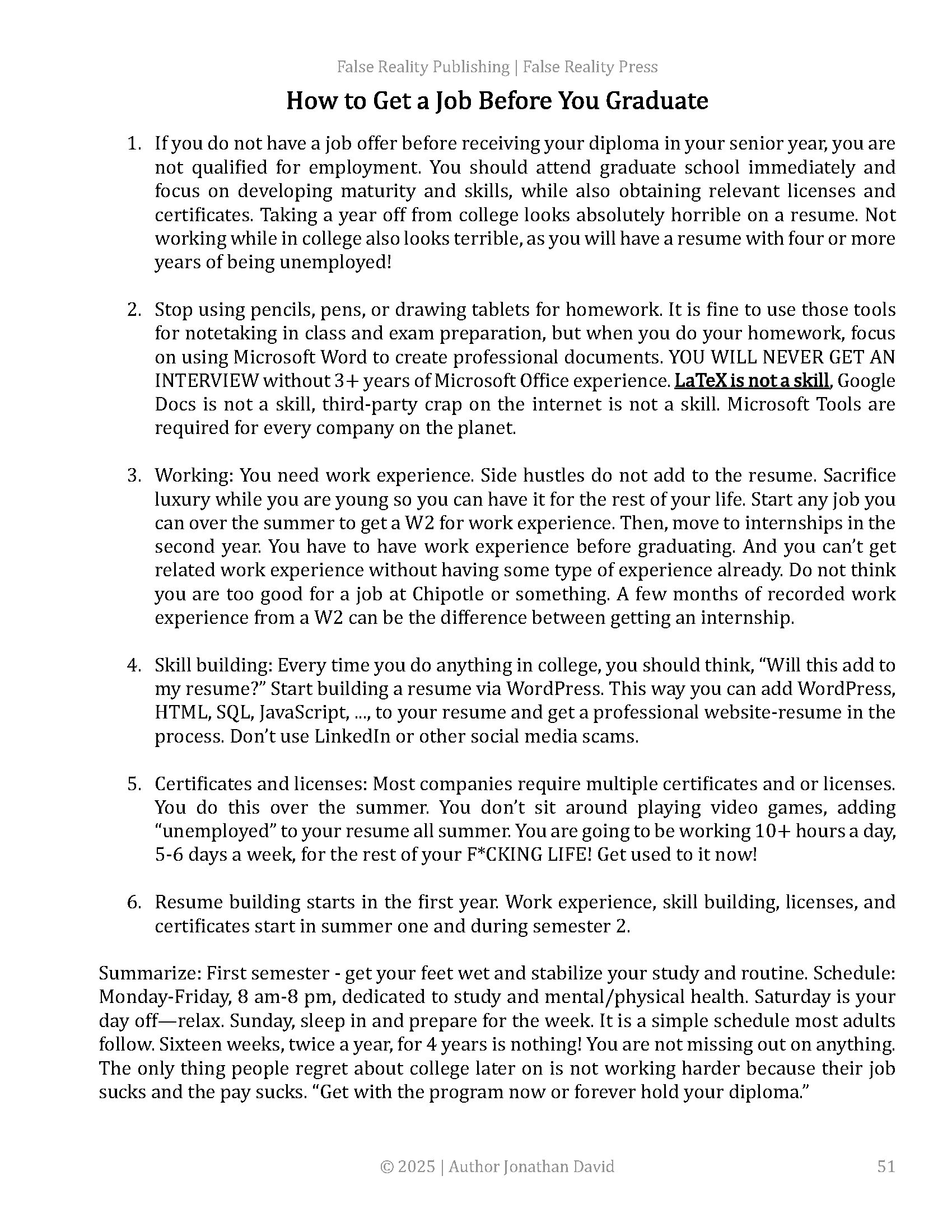
Why College Students Need to Learn Professional Software
Why would you want to rely exclusively on pencil and pen?
Watch the videos about reviewing job applications and preparing for future employment.
You need to know how to use software.
You have to use these tools, and you need to become comfortable working with them like an expert.
This is how you can use Microsoft Word to take notes for chemistry and calculus.
Get creative. Once you figure out how to use these tools, the process becomes easy.
Using Microsoft Word Dictation to Write Notes Faster
Microsoft Word also includes a dictation feature.
For example, you can activate Dictate and say:
Hello, I am writing some notes, and I do not feel like typing right now.
Word can convert what you say into text.
This is useful when you want to record an explanation quickly without typing every sentence yourself.
Editing Dictated Notes With Grammarly
After dictating your notes, you can use Grammarly to help edit the text.
Grammarly can help clean up your writing, correct mistakes, and improve the overall presentation of your notes.
I consider Grammarly an acceptable editing tool because it helps you work with established writing conventions and formatting expectations.
My internet connection was running a little slowly during the demonstration, but the main idea is simple: dictate your notes, review the wording, and then edit the final text so it looks neat and professional.
You can use all kinds of helpful tips and tricks to improve your digital notes.
Digital Note-Taking Tools for Chemistry, Calculus, and STEM Classes
To summarize, these are the primary tools and methods demonstrated in this lesson:
- Microsoft Word: Create organized digital notes, insert equations, add tables, and format documents.
- Custom keyboard shortcuts: Insert equations quickly using a shortcut such as Command + E.
- Equation formatting: Write mathematical expressions such as fractions, integrals, and functions.
- Heading styles: Organize chapters, sections, examples, and topics.
- Tables of contents: Navigate directly to previous lessons and reference material.
- Sketchbook: Draw chemistry diagrams and other educational illustrations.
- Canva: Create diagrams, align visual elements, and copy or reposition shapes.
- Graphing software: Create two-dimensional or three-dimensional graphs and add screenshots to your notes.
- Microsoft Word Dictate: Convert spoken explanations into written notes.
- Grammarly: Review and edit the final document.
All right, please join my channel. I have to pay my bills!
Explore More Mathematics Lessons and Books
This lesson is nothing more than a free preview and sample of The Ultimate Crash Course for STEM Majors. Discover additional mathematics lessons, physics resources, study strategies, books, and fiction at authorjond.com .